How to change the new tab page in Chrome
There are two honest answers, and which one you need depends on how far you want to go. Chrome can change the picture and the shortcuts on its own page in about thirty seconds. Replacing the page with something else entirely needs an extension: a clock, a countdown, your task list. Below is both, plus how to undo either one.
What Chrome lets you change on its own
Less than most people expect. The built-in options cover the background image, the shortcut tiles, and a colour theme. The layout itself is fixed: search box in the middle, tiles underneath, and no way to add anything that’s not a shortcut.
- Open a new tab.
- Click Customise Chrome in the bottom right corner. A pencil icon on older versions.
- Appearance sets a background: one of Google’s collections, a solid colour, or an image you upload. (The background alone has its own guide, GIFs and video included.)
- Shortcuts switches the tiles between your most visited sites and ones you choose by hand, or hides them altogether.
- Cards turns on the occasional suggestion panel, if you want it.
What Chrome doesn’t let you do
You can’t set the new tab page to a specific website. This surprises people, because Chrome does have a homepage setting and it does accept a URL, but the homepage is the button next to the address bar, not the new tab. They are separate, and only one of them takes a URL.
You also can’t add anything to the page. No clock, no notes, no calendar, no to-do list. The built-in page has one layout and it isn’t adjustable. That’s the point at which everything else on this page starts.
Replacing the page with an extension
Chrome lets an extension take over the new tab entirely. Install one and your next new tab is whatever that extension draws instead. There are a lot of them, they vary enormously, and they fall into roughly four groups:
| Kind | What you get | Suits you if |
|---|---|---|
| Photo and focus pages | A full-screen photograph, a greeting, often a single task for the day | You want the page calmer than it is now, not busier |
| Minimal pages | A clock, a search box, very little else | You find the default page distracting |
| Launchers and speed dials | A grid of site icons you arrange | You open the same twenty sites and want them one click away |
| Dashboards | Widgets you place yourself, clocks, lists, countdowns, notes, weather | You want the page to carry information, not just links |
Installing one
- Open its page in the Chrome Web Store.
- Click Add to Chrome, then Add extension in the dialogue.
- Chrome shows a notice saying the new tab page has changed and offers to keep or revert it. Choose Keep it.
- Open a new tab. That’s the new page.
Before you install anything
The new tab page is valuable to the people who make extensions for it, and a minority take advantage of that. Two things are worth checking, and they take under a minute:
- Does it change your search engine? A new tab extension has no business touching what your address bar searches with. If the listing mentions changing your default search, that’s what it’s for.
- What permissions does it ask for? Reading your browsing history and bookmarks is reasonable for a widget that displays them, and unreasonable for a wallpaper extension. The store lists permissions before you install.
Changing it back
Whatever you install, undoing it is the same three steps, and nothing about your bookmarks or history is affected:
- Open chrome://extensions, or Menu → Extensions → Manage Extensions.
- Find the extension and click Remove, or the toggle to disable it without deleting it.
- The next new tab is Chrome’s own page again, immediately.
If a new tab page appeared that you didn’t install, remove it the same way and then check Settings → Search engine — that’s the setting the less honest ones change while you’re looking at the pretty wallpaper.
Edge, Opera, Brave and Vivaldi
All four are built on the same engine as Chrome and install Chrome extensions, so everything above applies with small differences in wording. Edge may ask you to allow extensions from other stores the first time. Opera needs its Install Chrome Extensions add-on before the Chrome Web Store works. Brave and Vivaldi install them directly, with no extra step.
Firefox is the exception: it has its own add-on store, and a Chrome extension can’t be installed into it. Many new tab extensions publish a Firefox build separately.
Where New Tab Studio fits
This is our extension, so treat the rest of this section accordingly.
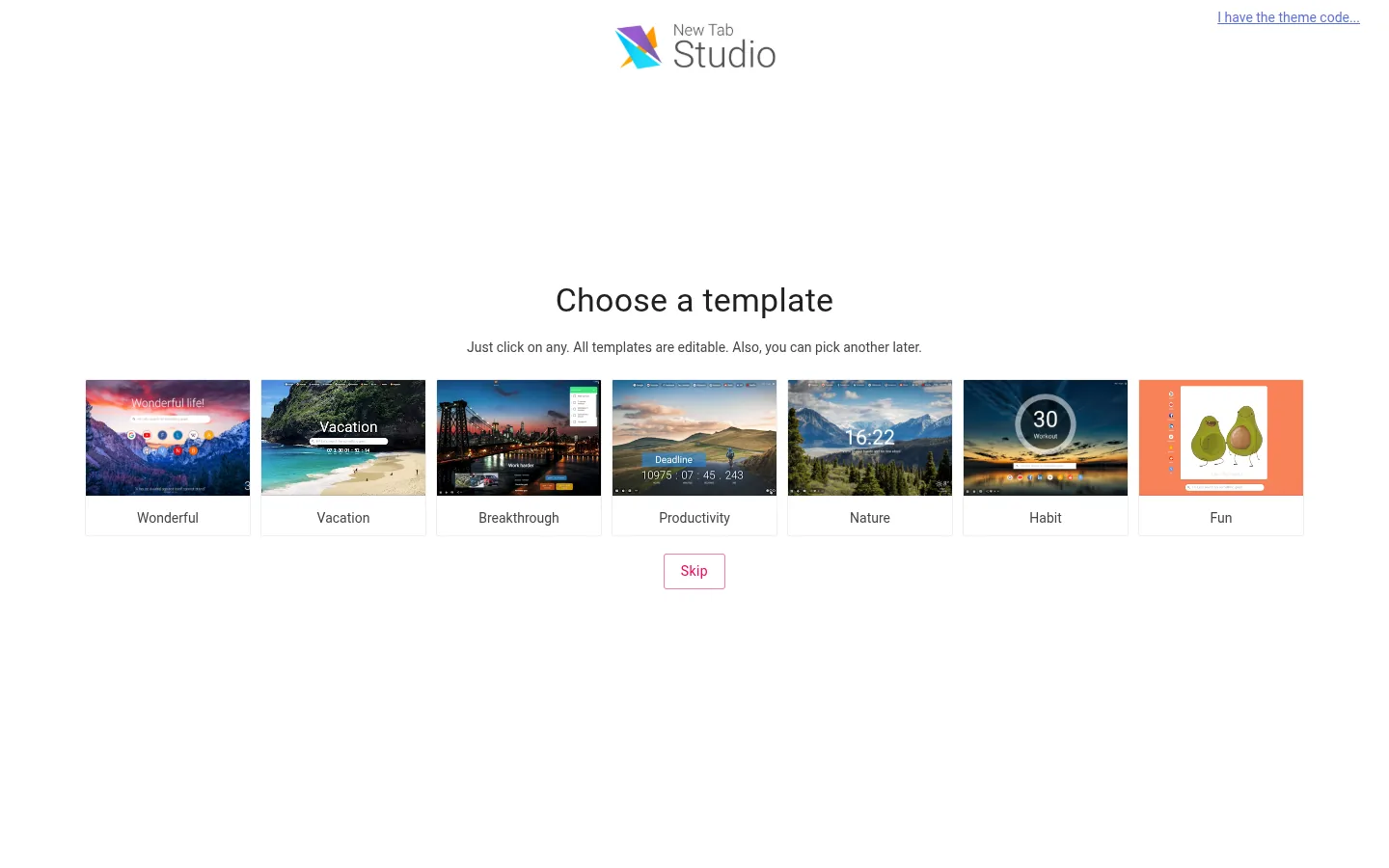
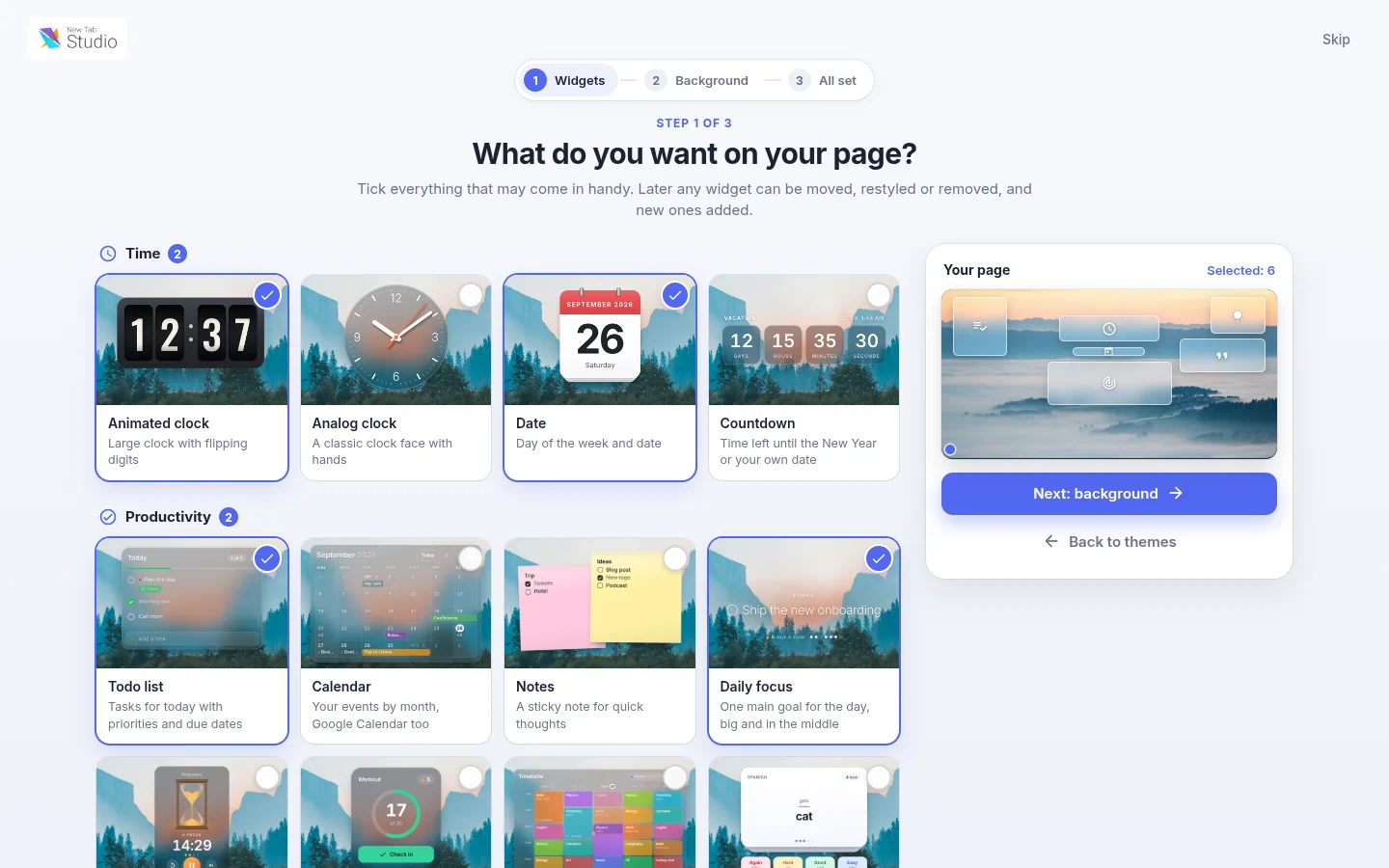
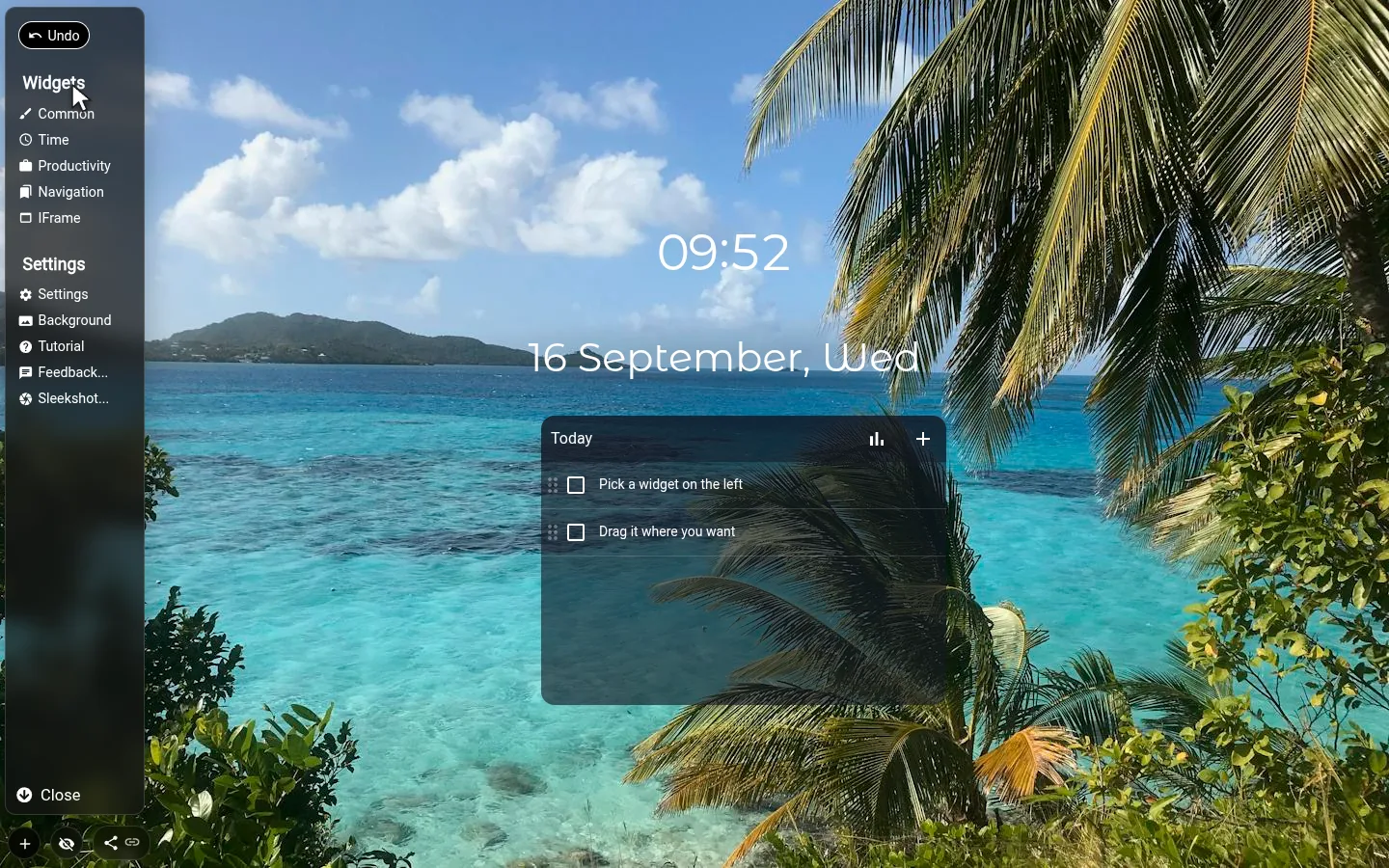
New Tab Studio is in the fourth group above, the dashboard kind. You get a blank page and a catalogue of widgets to put on it: countdowns, clocks, task lists, notes, weather, habit trackers. They are dragged into place rather than dropped into a grid, which is the main thing that separates it from the others.
It doesn’t change your search engine. There’s even a search widget setting that deliberately hands queries to whatever engine you’ve already chosen. Your layout is stored in your browser rather than uploaded, and no account is needed to use it.
It’s the wrong choice if you want the page simpler than the default rather than richer. A free-form canvas takes a few minutes to arrange, and if what you actually want is a photo and a clock, something minimal will make you happier with less effort. That’s a real answer to “which one should I use”, and it’s not always ours.
Free, no account, and removable in three clicks if it’s not for you.
Add New Tab Studio to ChromeCommon questions
How do I get my old Chrome new tab page back?
If an extension replaced it, switch that extension off or remove it at chrome://extensions, and Chrome’s own page is back on the next tab. If Chrome’s page only looks different after an update, open Customize Chrome: Classic Chrome under Change theme drops the picture, and the shortcuts switch brings the tiles back.
Can you customize the new tab page in Chrome?
Partly. Chrome’s own page lets you change the background, the colour and the shortcut tiles from the Customize Chrome button, while the layout stays fixed. A clock, a to-do list or a countdown on that page needs a new tab extension.
What’s the best way to organize the new tab page?
Keep it to what you reach for every day: a few shortcuts, a search box and whatever you need to see before you start. In New Tab Studio people often split it into workspaces, one for work and one for home, so each page stays short.
Can I set my new tab to open a specific website?
Not with a Chrome setting. The homepage setting takes a URL; the new tab doesn’t. An extension can do it, several exist for exactly this, but Chrome on its own can’t.
Will changing the new tab page slow Chrome down?
A well-built one, no. The page renders locally. What costs time is a page that loads a remote service on every tab. An embedded dashboard, a news feed, a heavy background fetched fresh each time.
Do I lose my bookmarks or history?
No. An extension draws a different page; it doesn’t touch your profile. Removing it puts the original page back exactly as it was.
Why did my new tab change on its own?
Something installed an extension, usually bundled with other software. Open chrome://extensions, remove anything you don’t recognise, then check your default search engine in settings.
Can I have different new tab pages for work and personal use?
Chrome profiles are the general answer, each profile keeps its own extensions and settings. Some dashboard extensions also offer several pages within one, which is lighter than switching profiles.