
How to change the background on Chrome
To change the background on Chrome, open a new tab, click Customize Chrome in the bottom right corner and pick a picture under Change theme. For a still photo that’s the whole job. The rest of this page covers the cases where it isn’t: the button has vanished, you want dark mode, or you’re after a GIF, a video or a wallpaper that changes by itself.
Changing the background with Chrome’s own settings
- Open a new tab: Ctrl+T, or Cmd+T on a Mac.
- Click Customize Chrome at the bottom right. A panel slides out on the right.
- Choose Change theme.
- Open a collection and click a picture. Or pick Upload an image and use a photo from your computer.
- Close the panel. The new background is already on.
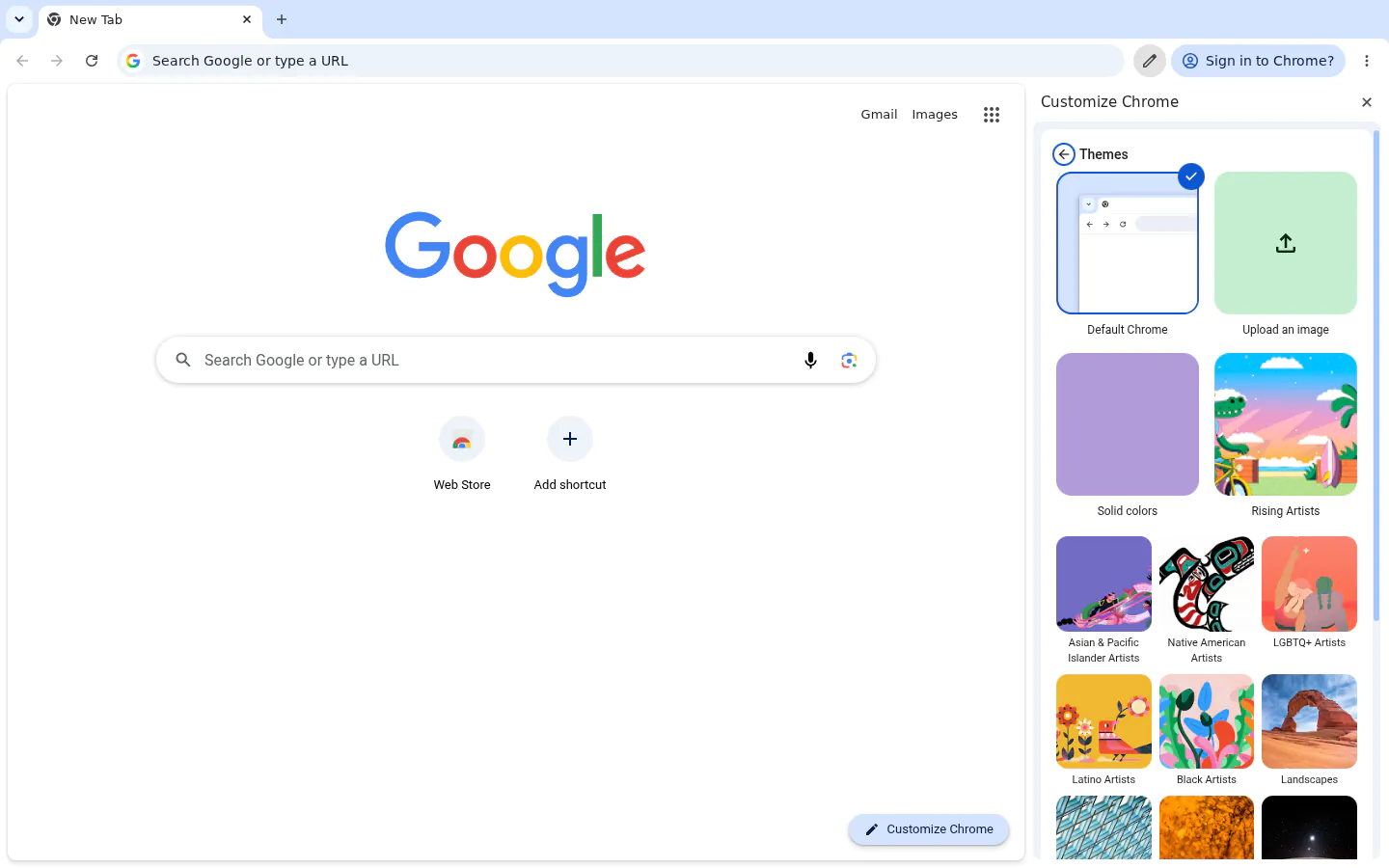
Inside a collection you’ll find a Refresh daily switch. It swaps the picture for another one from the same collection every day, and it’s the only automatic option Chrome has.
Why can’t I change my Chrome background?
Usually because the page in front of you isn’t Chrome’s. The Customize Chrome button lives on Google’s own new tab, so anything that replaces that page takes the button with it. Go through these in order:
- An extension has taken over the new tab. Then the background is set inside that extension, not in Chrome. If you don’t want it any more, switch it off at chrome://extensions and Chrome’s page comes back with the button.
- Google isn’t your default search engine. Chrome only shows its customisable page when searches go to Google. Check Settings → Search engine.
- A work or school computer. If the Chrome menu says it’s managed by your organisation, the administrator may have locked the look of the browser. Nothing to fix on your side there.
- An Incognito or Guest window. These always open the plain page, whatever you picked in your normal profile.
Dark mode and colours
The same panel handles colour. Under the theme you can pick a colour for the browser frame and switch between Light, Dark and Device, which follows your system setting. Dark mode darkens the tabs, the menus and the page around your picture. It doesn’t touch the picture itself, so a bright beach photo stays a bright beach photo.
If you want no photo at all, a flat colour works too. Some people find it easier on the eyes than any wallpaper, and it loads instantly.
GIF and video backgrounds (live wallpaper)
Chrome’s panel is made for still pictures. For something that moves you’ll need an extension, and they come in two kinds.
One scene per extension. Search the Chrome Web Store for live wallpaper and you’ll get pages of listings, each shipping a single animated scene: a cabin in the snow, a black hole, a game character. If you love that exact scene, fine. When you get bored of it, though, the only way to change it is to install a different extension.
Extensions that take any source. This is where New Tab Studio sits, and since it’s ours, weigh this paragraph accordingly. Its background picker has a GIF search tab for animated backgrounds, and the Image URL tab accepts a direct link to a video file (MP4 or WebM, plus a few rarer formats). The video plays silently on a loop.
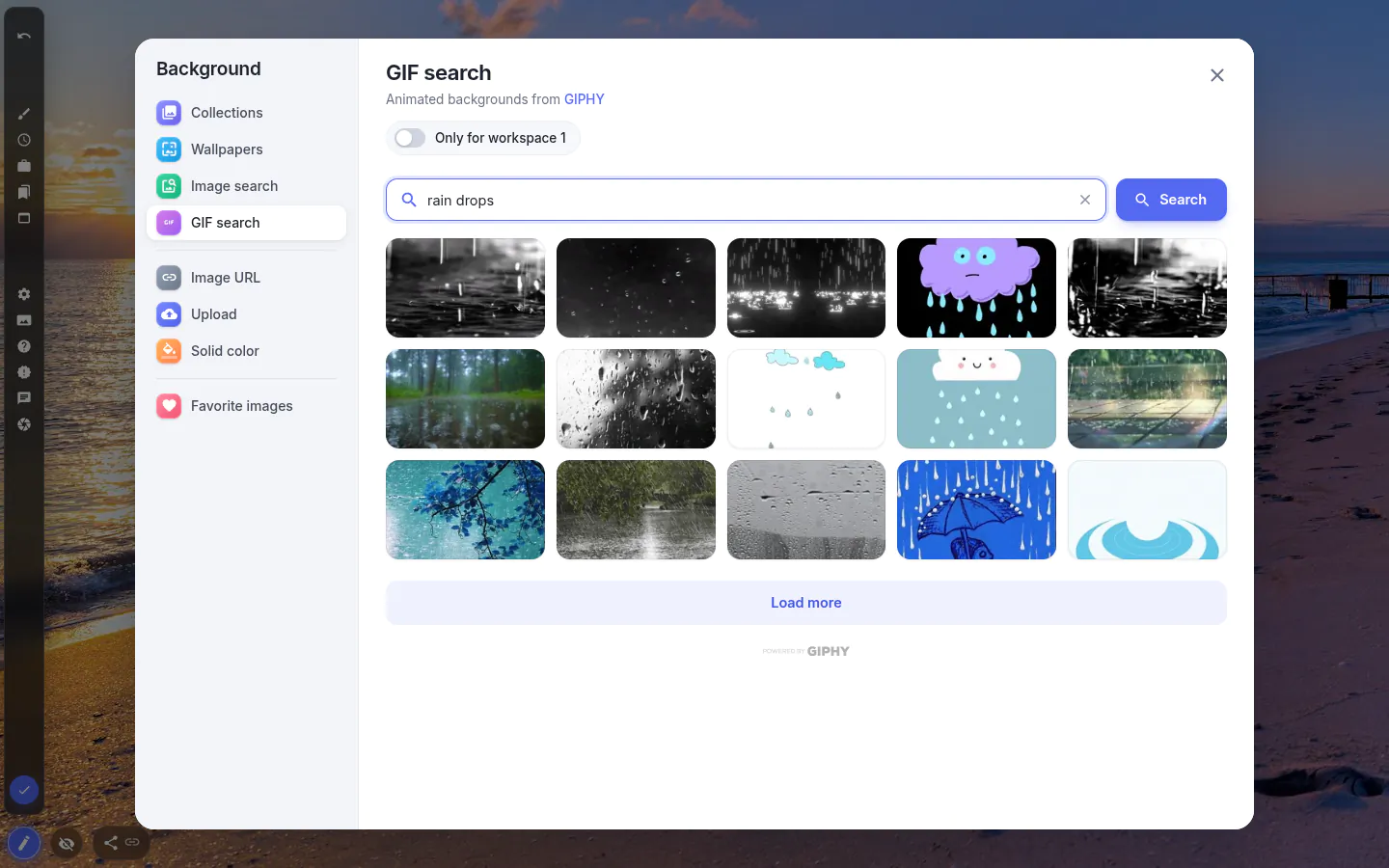
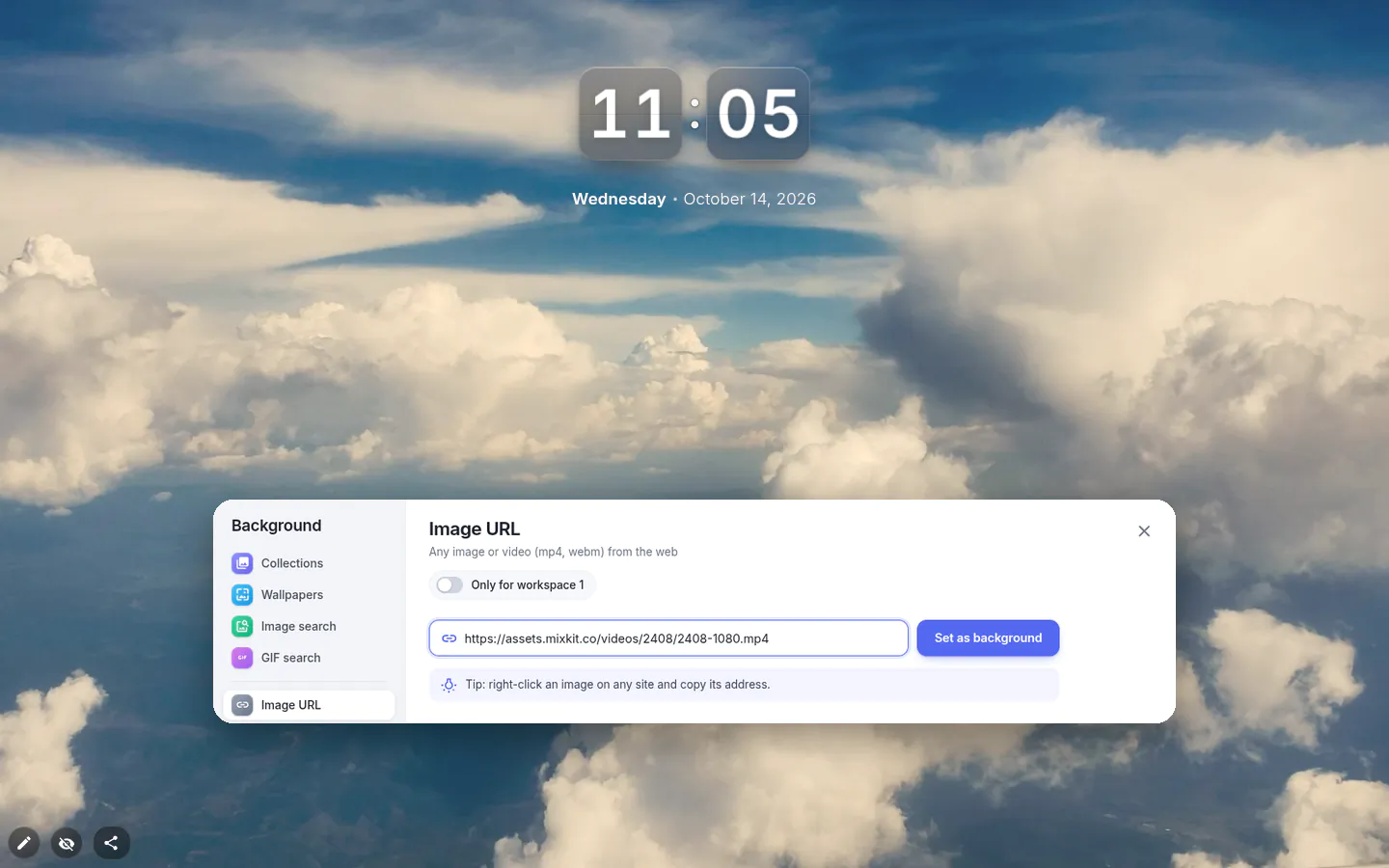
Two limits worth knowing before you go hunting for clips. A video background doesn’t rotate on a timer the way photos can. And you can’t upload a video from your computer, only link to one; uploads are for images (JPG, PNG, WEBP or GIF, up to 10 MB). Also, a clip behind every tab means a clip plays every time you open one. On an older laptop, keep it short.
A wallpaper that changes by itself
Refresh daily picks from Google’s collections, once a day. If you’d rather choose the source and the pace yourself, that’s the other thing extensions are for. In New Tab Studio, the background picker has eight tabs. Two of them can keep the picture changing for you:
- Collections: curated sets, including a holiday group (Christmas, Halloween, Thanksgiving and so on).
- Wallpapers: pulled from wallhaven.cc across 20 categories, from Mountains and Space to Anime and Japan. It only returns safe-for-work, landscape images of at least 1920×1080, and there’s a resolution filter. Pick My screen and up and it counts the physical pixels of your display, so a 4K monitor won’t get Full HD. Shuffle sets a random one from the category and keeps going.
Then set the pace: every 5 minutes, every hour, every 6 hours (the default), every 24 hours, every week, or a custom number of minutes. The pin in the bottom bar stops the rotation on a picture you like, and Show previous image steps back through the last ten, which is handy when the shuffle takes away a good one.
If you use workspaces, each one can have its own background. Switch on Only for workspace in the picker. That background stays put: automatic changes only apply to the shared one.
Your own photo
Chrome’s Upload an image does this well enough for one picture. In New Tab Studio the Upload tab takes JPG, PNG, WEBP and GIF files up to 10 MB, and the file stays in your browser rather than going to a server. Favorite images keeps the ones you’ve liked, so you can come back to them. The Solid color tab has 16 ready colours, a full palette and a HEX field for the exact shade. No gradients, if that’s what you were hoping for.
New Tab Studio is free to install and needs no account. It also puts widgets on top of the wallpaper, which is the part Chrome can’t do at all.
Add New Tab Studio to ChromeQuestions people ask about Chrome backgrounds
Can I put a GIF as my Chrome background?
Chrome’s own Customize panel is made for still pictures, so the reliable route to a moving background is a new tab extension. In New Tab Studio you open the background picker, find one in GIF search or upload a GIF of your own, and it loops behind your widgets.
How do I turn off the dark background on Chrome?
Open Customize Chrome and switch the mode from Dark to Light. If it’s set to Device, Chrome follows your system, so a dark Windows or macOS theme keeps it dark; either change the system setting or pick Light in Chrome to override it.
Does a video or GIF background slow Chrome down?
A little, since the clip plays whenever a new tab is open, so a short, small file is kinder to an older laptop. From version 4.0.1 New Tab Studio pauses a video background in tabs you’re not looking at, and a video never rotates on a timer.
Changing your Chrome background back to normal
In Chrome: Customize Chrome → Change theme, then Classic Chrome. That removes the picture and puts back the plain page.
If an extension set the background, removing the extension is the whole undo. Open chrome://extensions, click Remove, and your next new tab is Chrome’s page with whatever background you had there before. Bookmarks and history aren’t affected either way.
Want to change more than the picture? There’s a separate guide to changing the new tab page in Chrome altogether, and a gallery of ready-made pages other people built, wallpaper included.