
Top sites: a speed dial for Chrome’s new tab
Want a speed dial Chrome extension that also knows your most visited sites? Top sites reads Chrome’s ranking, then lets you pin, reorder, rename and add your own. Came here to edit Chrome’s own new tab shortcuts instead? That happens on Chrome’s page, and you do not need us for it.
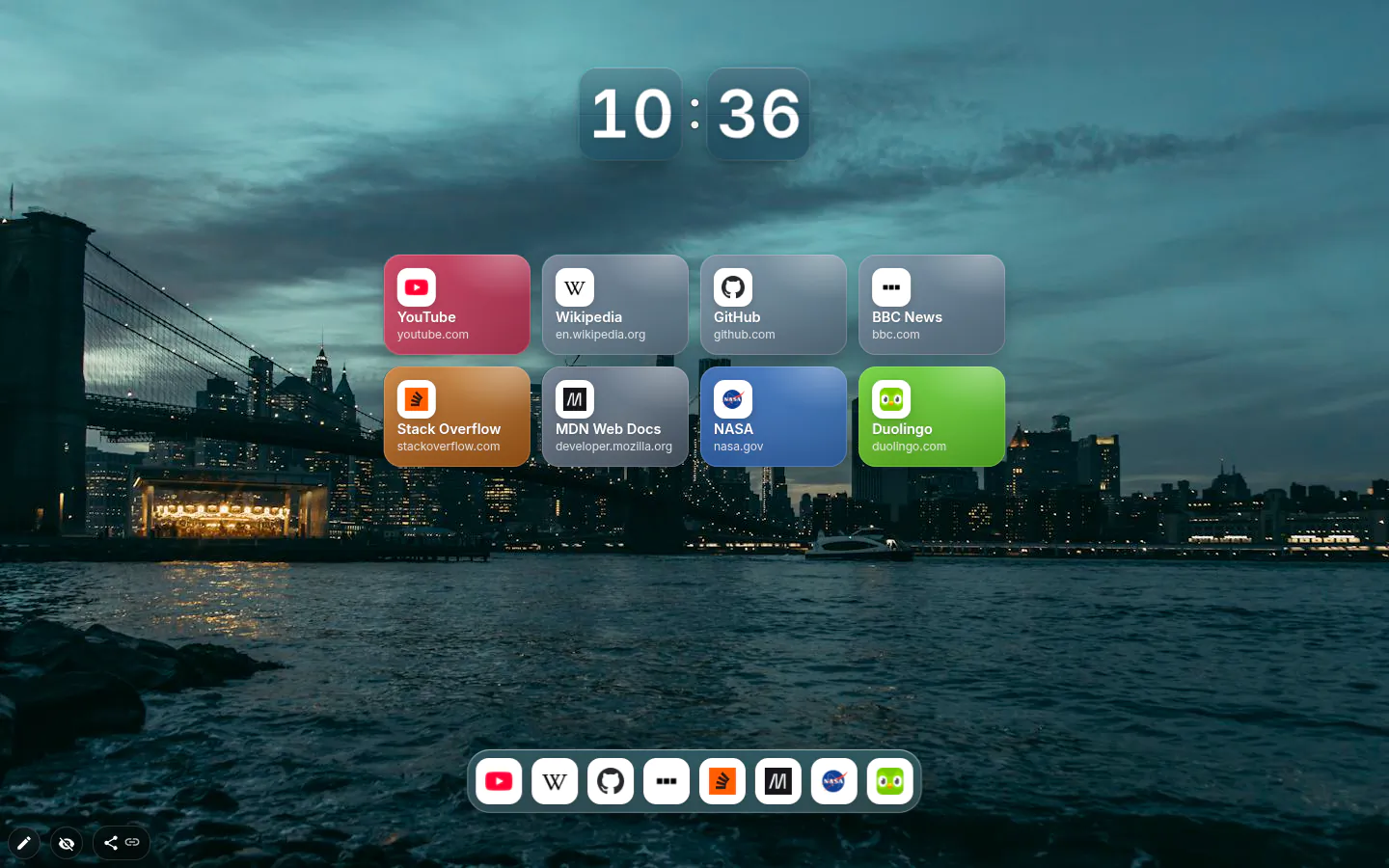
Chrome’s shortcuts or this widget?
Chrome’s built-in new tab page has shortcut tiles of its own, and you edit them right there. Install a new tab extension, this one included, and that page is replaced, tiles and all.
The widget picks up where those tiles stop. Show up to 40 sites or every one Chrome ranks, set the columns, pick one of six designs. "Sites to show" switches between "Most visited + mine" and "Only mine", and the second turns it into a plain speed dial with no browsing history in it.
An order that stays put
In edit mode, drag a tile to where it belongs, on the widget or in the settings list. Everything up to the drop point gets pinned, so next week’s ranking can’t shuffle it back. "Pin to the start" does the same for a single site.
Delete a site and it’s hidden for good. Clicked the wrong ✕? An Undo waits at the bottom of the screen for six seconds, and older removals come back from "Hidden sites" with Show again.
Adding got quicker too. Paste an address into settings, or drag a link from the address bar and drop it on the widget. That’s it.
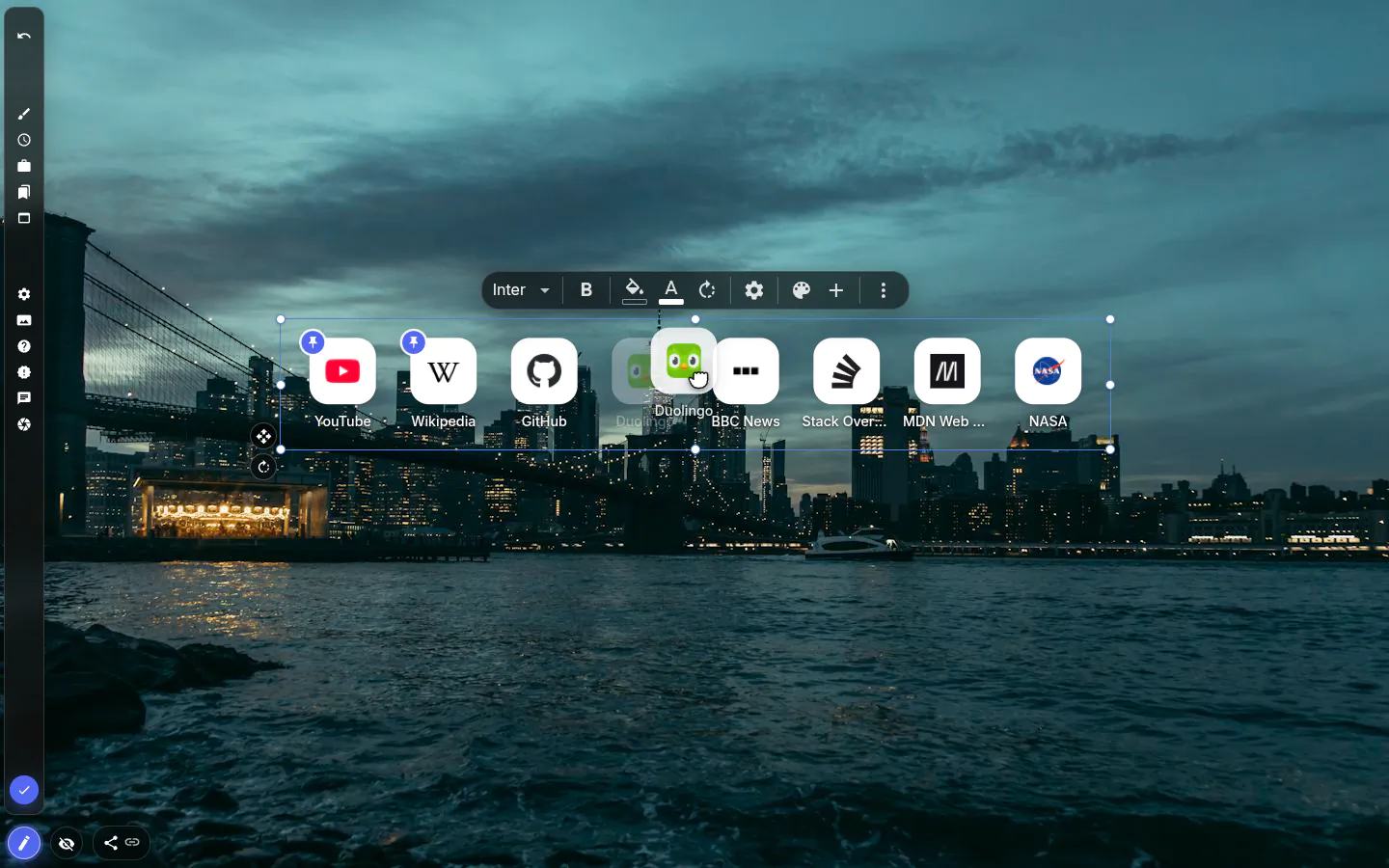
Six designs
Classic is the old row of icons, with pixel sizes from 16 to 128. Tiles (what a new widget gets, eight sites in Inter), Dock, List, Cards and Icons only size their frame to the number of sites and columns by themselves. Cards paint every tile in the main colour of the site’s icon. Those colours are kept in this browser and don’t go into your theme.
Labels depend on the design. Classic, Tiles and Dock can hide them, List and Cards always show them, Icons only shows a name on hover.
Any site can be renamed and given its own icon — a letter, the site’s icon, an emoji or a picture of yours.
Permission and icons
Reading your most visited sites takes Chrome’s topSites permission, asked in a single prompt when you add the widget. Say no and nothing breaks. The widget stays, shows the sites you added and offers an Allow access button for later.
Small icons come from the browser’s own favicon store first, while large ones, and whatever the browser lacks, are requested from Google’s favicon service, with misses remembered for three days so the same dead icon isn’t asked for on every tab. Localhost, IP addresses and .local names are never sent to Google.
Top Sites settings
- Design
- Classic, Tiles, Dock, List, Cards or Icons only.
- Sites
- "Paste or type an address" to add one. Edit, pin or remove from the list; Show again brings hidden sites back.
- Number of sites
- From 1 to 40, or All.
- Columns
- 1 to 10 or Auto. Not offered for Classic and Dock.
- Icon size / Icon shape
- Pixel sizes from 16 to 128 in Classic; Rounded or Circle in the other designs.
- Show titles
- A switch in Classic, Tiles and Dock.
- Sites to show
- Most visited + mine, or Only mine.
- Open in a new tab
- Leave it off to open sites in the tab you’re on.
What people use it for
- A speed dial of hand-picked sites, with browsing history kept out.
- Most visited sites minus the ones you’d rather not be reminded of.
- A dock of eight icons along the bottom of a photo theme.
- A List design as a narrow column of work tools.
Put the top sites on your new tab
It comes with New Tab Studio. The extension is free to install and needs no account to start.
- 1Add New Tab Studio to Chrome
- 2Open a new tab, click the button at the bottom left
- 3Pick the widget, then drag it into place
Questions about the top sites widget
How do I edit the shortcuts on Chrome’s new tab page?
You edit the shortcuts on Chrome’s new tab page from the page itself. Open Customize Chrome in the bottom-right corner, choose My shortcuts under Shortcuts, then hover over a tile and use its three-dot menu to edit or remove it. A new tab extension replaces those tiles, and the Top sites widget takes over with drag-to-reorder, renaming and custom icons.
How do I get my most visited sites back on the new tab?
To get most visited sites back on Chrome’s own new tab, open Customize Chrome, go to Shortcuts, switch them on and choose Most visited sites. If an extension replaced that page, the tiles left with it. New Tab Studio’s Top sites widget reads the same Chrome ranking, shows up to 40 of those sites and brings removed ones back with Show again.
Is there a free speed dial extension for Chrome?
Yes, the Top sites widget in New Tab Studio works as a free speed dial on Chrome’s new tab, with six designs and up to 40 tiles. Set Sites to show to Only mine and it holds just the addresses you picked, with no browsing history and no permission involved. It fills one hand-added slot of the three on the free plan.
If I remove a site by mistake, can I get it back?
Yes, an Undo button waits at the bottom of the screen for six seconds after you remove a site from Top sites. Missed it? Open settings and press Show again under Hidden sites. Otherwise a removed site stays hidden for good, however high Chrome keeps ranking it.
Does the Top sites widget send my browsing history anywhere?
No, the Top sites widget gets its list from Chrome and draws it on the page without sending it anywhere. The one outside request is for icons the browser hasn’t stored, looked up at Google’s favicon service by address. Localhost, IP addresses and .local names are never sent to Google at all.
Widgets that pair well with it
See the full widget catalogue or browse themes other people have built.