
Show bookmarks on the new tab, five ways
This is the bookmarks Chrome extension part of New Tab Studio: your actual bookmarks on the new tab page, in the design you choose. Hide Chrome’s own bar with Ctrl+Shift+B (⌘⇧B on a Mac) and every other tab gets that strip back, while your bookmarks wait on the page where you decide where to go.
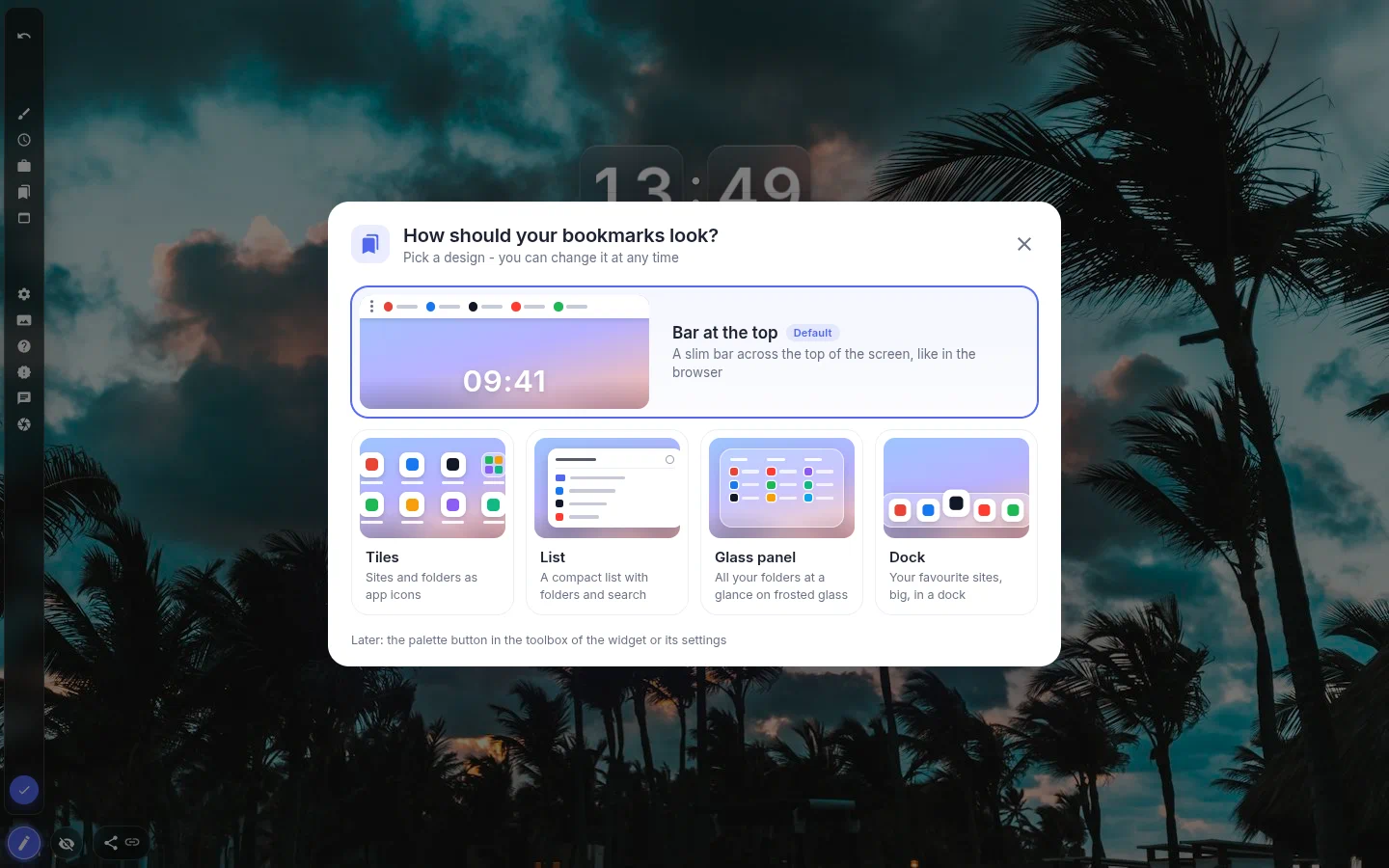
Pick a design when you add it
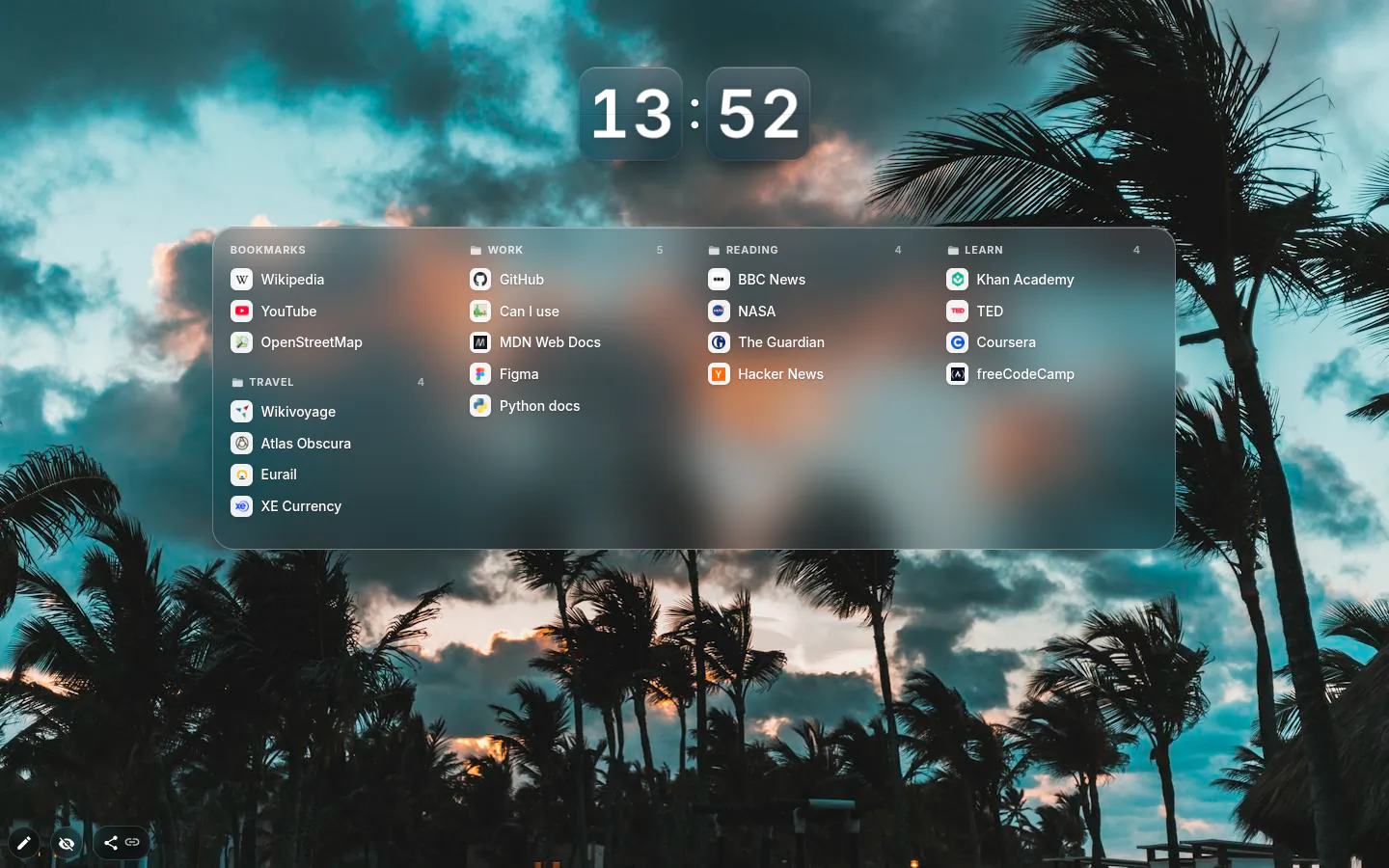
Adding the widget opens "How should your bookmarks look?" with five answers. Bar at the top is the familiar strip across the window. Tiles shows sites and folders as app icons, List is compact and searchable, Glass panel lays out all your folders at once on frosted glass, and Dock gives your favourite sites big icons.
Close the window without choosing and you get the bar. Only the bar stretches edge to edge; the other four are ordinary widgets you drag and resize.
Your real bookmarks, kept live
Nothing is imported or copied — the widget reads Chrome’s bookmarks and redraws itself when they change, whether you star a page, move a folder or import from another browser.
It shows bookmarks and does not manage them. Adding, renaming and deleting happen in Chrome as usual, and the change turns up here a moment later.
Folder to show narrows the view. Start it at "Work" or "Recipes" and that folder is all the page shows, while Chrome keeps the full tree. Folders open inside the widget.
The bar, sized in real pixels
Bar at the top keeps its height in screen pixels, 30 by default and anywhere from 24 to 72 when you resize it. A small window no longer squashes it flat. Out of the box it’s white with dark Roboto text, close enough to Chrome’s to need no relearning.
Drop it onto a page that already has widgets along the top and they slide down to sit just below it. Put a search bar right underneath and the top of the page turns into a working header. Turn Show titles off and the bar becomes a row of icons.
Bookmarks settings
- Design
- Bar at the top, Tiles, List, Glass panel or Dock.
- Folder to show
- All bookmarks (the bookmarks bar plus your other folders) or any single folder.
- Open in a new tab
- Your call. A middle click opens a new tab whatever this says.
- Show titles
- In Bar, Tiles and Dock. For the bar, off means icons only.
What people use it for
- Hiding Chrome’s bookmarks bar without losing the bookmarks.
- One folder of work links as tiles on a work workspace.
- A searchable list for anyone who bookmarks everything.
- A dock of big icons for the five sites you open daily.
Put the bookmarks on your new tab
It comes with New Tab Studio. The extension is free to install and needs no account to start.
- 1Add New Tab Studio to Chrome
- 2Open a new tab, click the button at the bottom left
- 3Pick the widget, then drag it into place
Questions about the bookmarks widget
How do I show bookmarks on the Chrome new tab page?
Chrome’s built-in way to show bookmarks is Ctrl+Shift+B (⌘⇧B on a Mac), which turns the bookmarks bar on for every tab. To keep them on the new tab page alone, add the Bookmarks widget in New Tab Studio. It reads your real Chrome bookmarks and comes in five designs, from a bar at the top to tiles, a searchable list, a glass panel and a dock.
Can I show only one bookmarks folder on my new tab?
Yes, the Bookmarks widget’s Folder to show setting starts the view at any single folder, say Work or Recipes, and the page shows only that one. Chrome keeps the full tree. Subfolders open right inside the widget, and the List design adds a search box for anyone with hundreds of bookmarks.
Do I have to import my bookmarks into a new tab extension?
No import is needed with New Tab Studio, because the Bookmarks widget reads what’s already in Chrome and redraws itself whenever that changes, synced bookmarks from other devices included. Editing stays in Chrome. The widget only shows bookmarks and can’t add, rename or delete them.
Is it free to show bookmarks on the new tab?
Yes, all five bookmark designs, folder views and search are free. The widget asks for Chrome’s bookmarks permission once, when you add it, and if you decline, a Show my bookmarks button waits to ask again. Placed by hand, it takes a widget slot, and the free plan has three of those.
Widgets that pair well with it
See the full widget catalogue or browse themes other people have built.