Google apps links on your new tab, in your order
Google apps links on the new tab page, arranged your way: Gmail first, Gemini second, Earth nowhere at all. A new tab extension takes Google’s own shortcuts away with Chrome’s page, and this widget brings them back with a say in what’s there.
Choose the apps, then the order
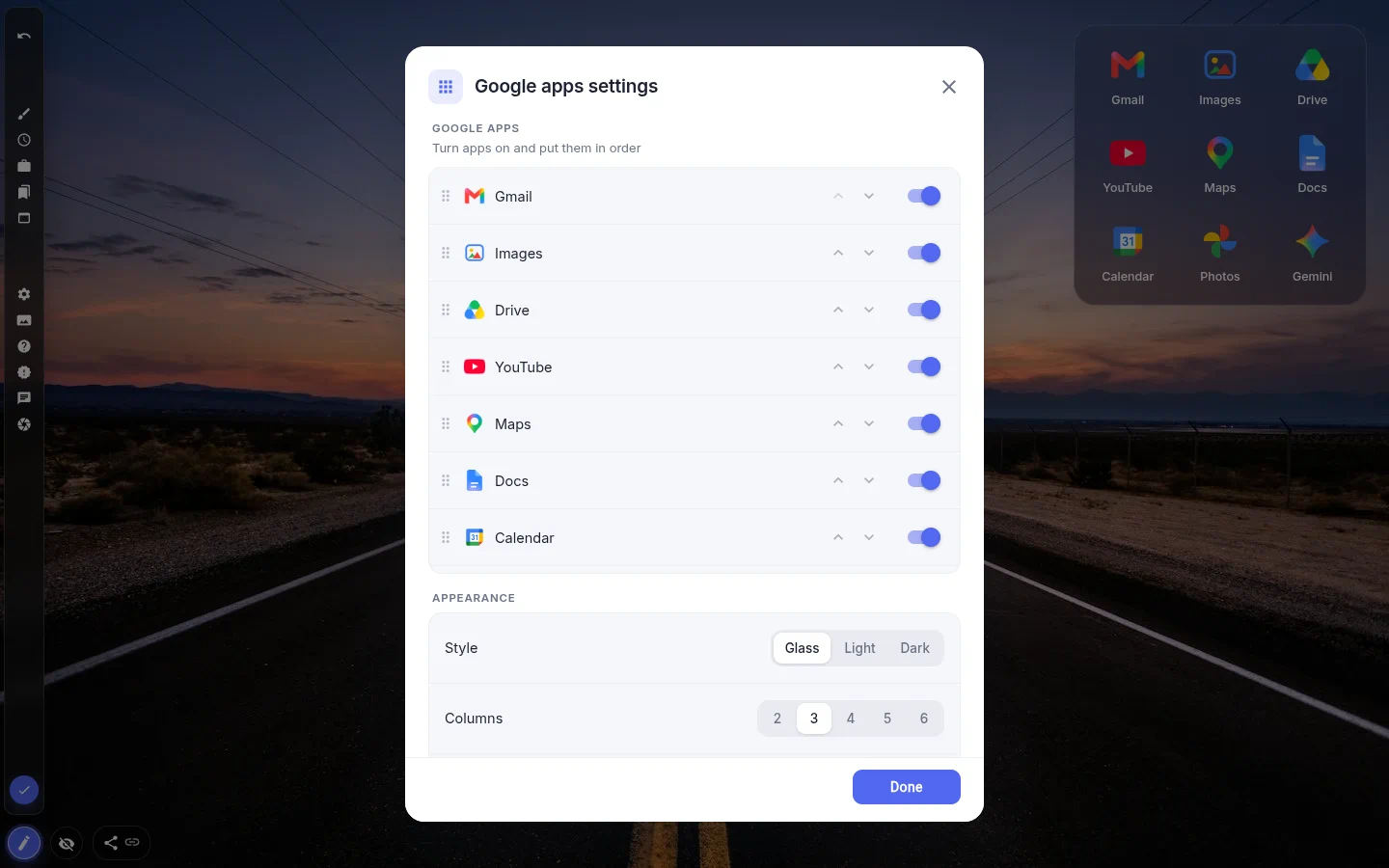
The Google apps section of settings reads "Turn apps on and put them in order". There are 21 to pick from. Search, Gmail, Images, Drive, Docs, Sheets, Slides, Calendar, Maps, YouTube, Photos, Translate, News, Gemini, Meet, Chat, Keep, Play, Lens, Earth and Account.
A new widget starts with nine in a 3×3 grid (Gmail, Images, Drive, YouTube, Maps, Docs, Calendar, Photos and Gemini). Switch off what you never open (Earth, for most of us) and drag the rest into place.
Docs, Sheets and Slides share one domain yet each gets its own icon. The icon is looked up by page address, not by domain.
Six designs
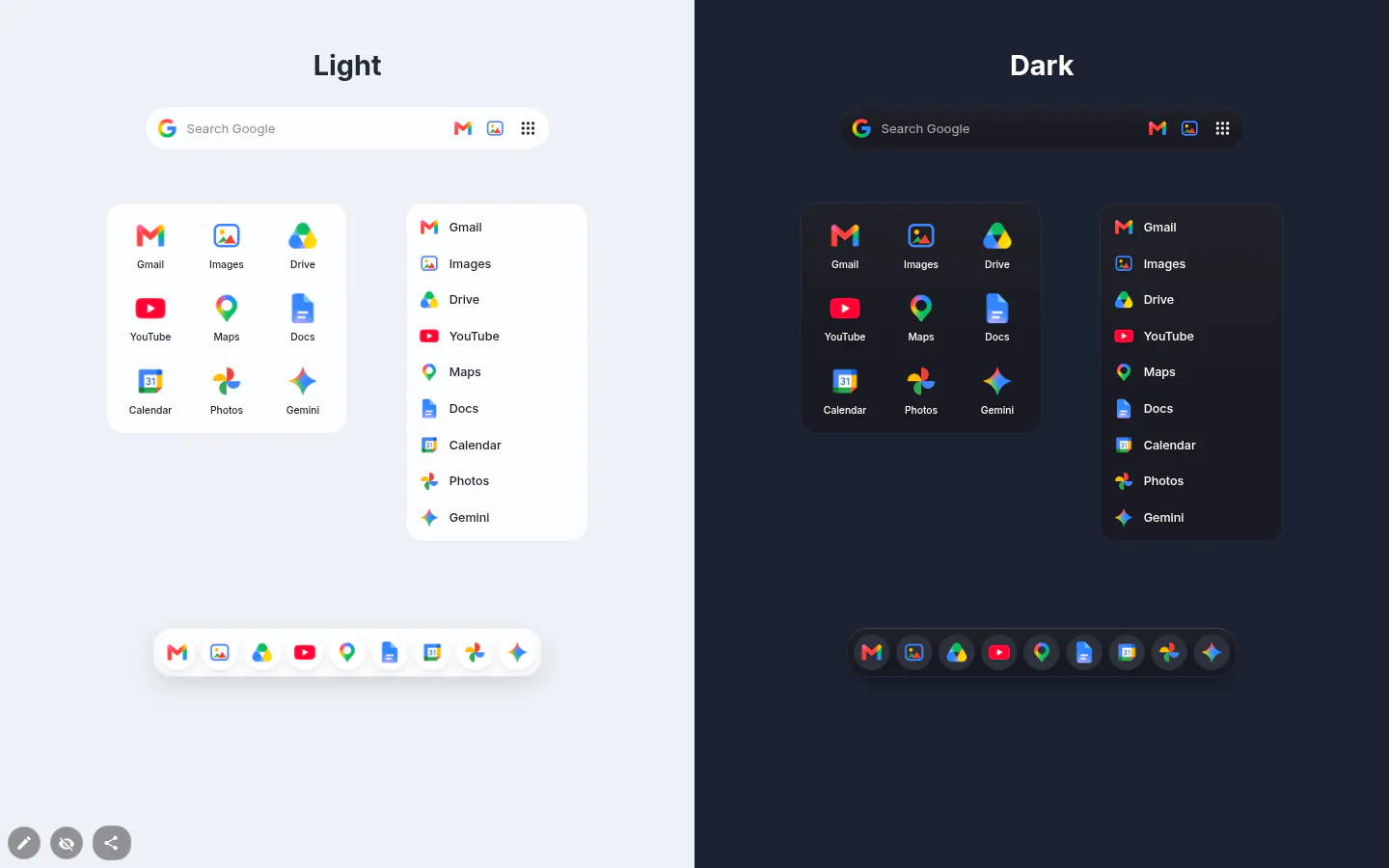
Classic is the old "Mail · Images · apps" cluster with its three switches and a fixed menu of 25 services. Top bar lines links up in a strip with an apps menu. App grid is what a new widget gets. Dock sets the icons in a row, Search bar puts a Google search box in the widget with apps beside it, and List stacks them in up to three columns.
There’s also a style to pick (Glass, Light or Dark). Add a new widget to a page with a light solid background and it picks Light by itself.
A Classic quirk worth knowing: switch off all three parts and nothing is left on screen.
Why one widget beats five links
You could rebuild this from link widgets. Why bother? The free plan runs three widgets, and this one fits up to 21 apps into a single slot.
It places itself top right and drops below the bookmarks bar if one is there. Move it anywhere after that.
Google Apps Links settings
- Design
- Classic, Top bar, App grid, Dock, Search bar or List, plus a Glass, Light or Dark style.
- Google apps
- 21 services to switch on and drag into order.
- Columns
- 2 to 6 in App grid, 1 to 3 in List.
- Show app names
- App grid and Dock.
- Links in the bar / Icons in the bar
- Zero to four up front in Top bar and Search bar; the rest wait in the apps menu.
- Open links in a new tab
- Gmail and the rest open in a fresh tab instead of this one.
- Show mail, Show images, apps menu
- Classic only, three separate switches.
What people use it for
- Gmail, Calendar and Drive back in the corner after a new tab extension removed them.
- A dock of the four Google tools your job runs on.
- A Google search box with the apps menu beside it.
- A List design with Docs, Sheets and Slides for a study workspace.
Put the google apps links on your new tab
It comes with New Tab Studio. The extension is free to install and needs no account to start.
- 1Add New Tab Studio to Chrome
- 2Open a new tab, click the button at the bottom left
- 3Pick the widget, then drag it into place
Questions about the google apps links widget
How do I get Gmail and the Google apps grid back on my new tab?
Gmail, Images and the Google apps grid sit in the top-right corner of Chrome’s own new tab, so they return as soon as you switch off the extension that replaced the page. Keeping New Tab Studio? Its Google apps widget puts them back in that corner, starting with nine apps in a 3×3 grid, Gmail and Drive among them.
Can I choose which Google apps show up and in what order?
Yes, the Google apps widget lists 21 services, from Gmail and Drive to Gemini, Keep and Earth, and you switch each on or off and drag them into order. Classic is the exception, with a fixed menu of 25 services. Anything Google that isn’t listed can go on a link widget instead.
Does the Google apps widget work with a Workspace account?
The Google apps widget works with a Workspace account the way Google’s own links do, opening each service in the account the browser is signed into. A custom Workspace domain can’t be swapped in, though. And since these are links rather than a mail client, there’s no unread count.
Does it cost anything to add Google apps to the new tab?
No, the Google apps widget is free in every design, all 21 apps included. It’s also the thrifty choice on the free plan — five separate links would blow past the three widgets a free page keeps working, while this packs up to 21 apps into one.
Widgets that pair well with it
See the full widget catalogue or browse themes other people have built.