Shapes and lines for your new tab layout
Every other widget shows something. This one shows nothing, and it’s the reason a page looks designed rather than assembled: the rule under a heading, the panel behind a column, the line between work and home.
Grouping without a grid
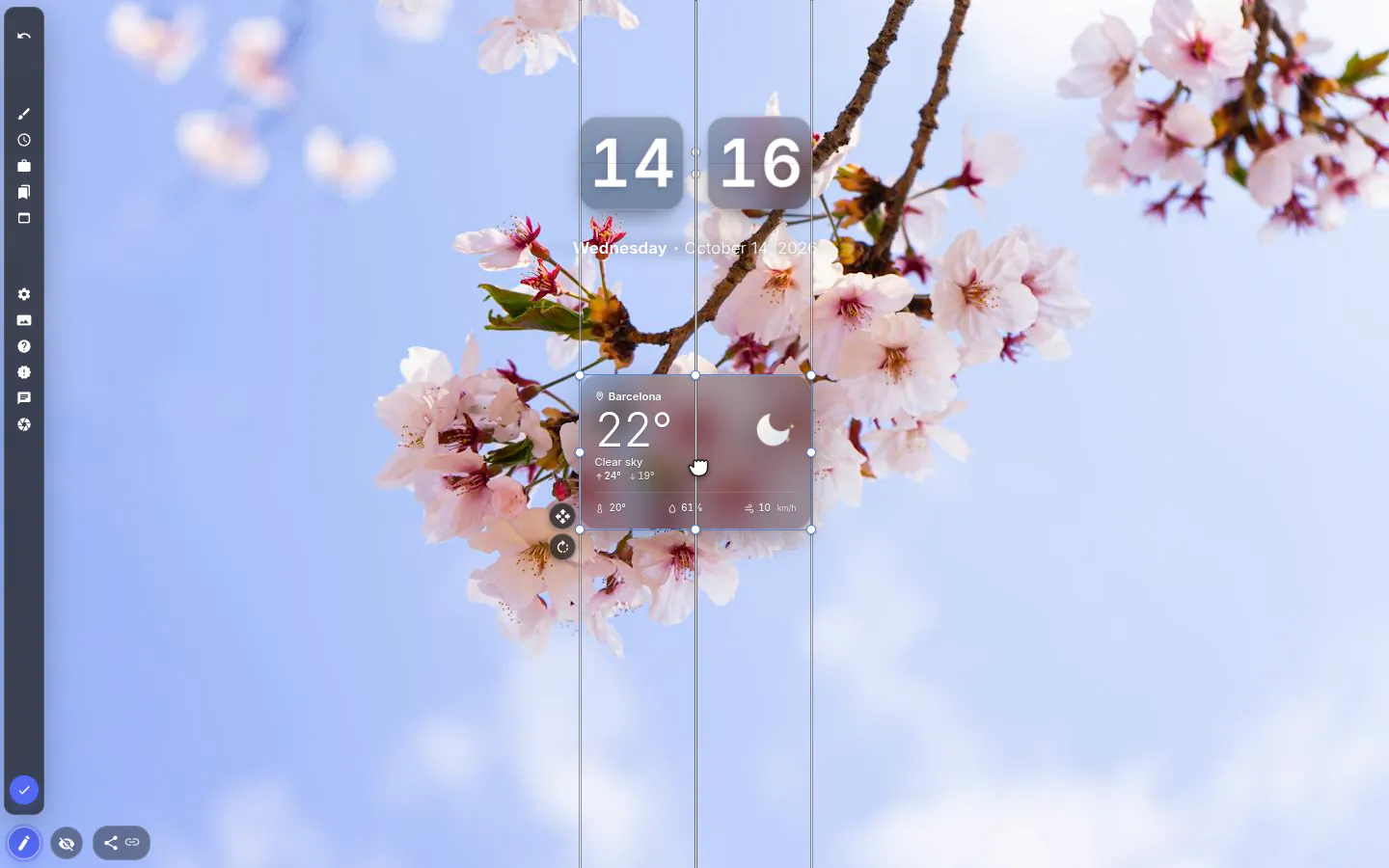
Widgets float freely. That’s the best thing about the extension and its biggest risk, because eight unorganised widgets read as eight strangers. A translucent rectangle behind three of them says "these go together" faster than any amount of careful alignment.
Dashboard themes lean on this constantly. Put one panel behind the work column and another behind the personal side, and suddenly each group reads as a single block instead of a scatter of loose parts. Cheap trick. Works.
One rectangle, several shapes
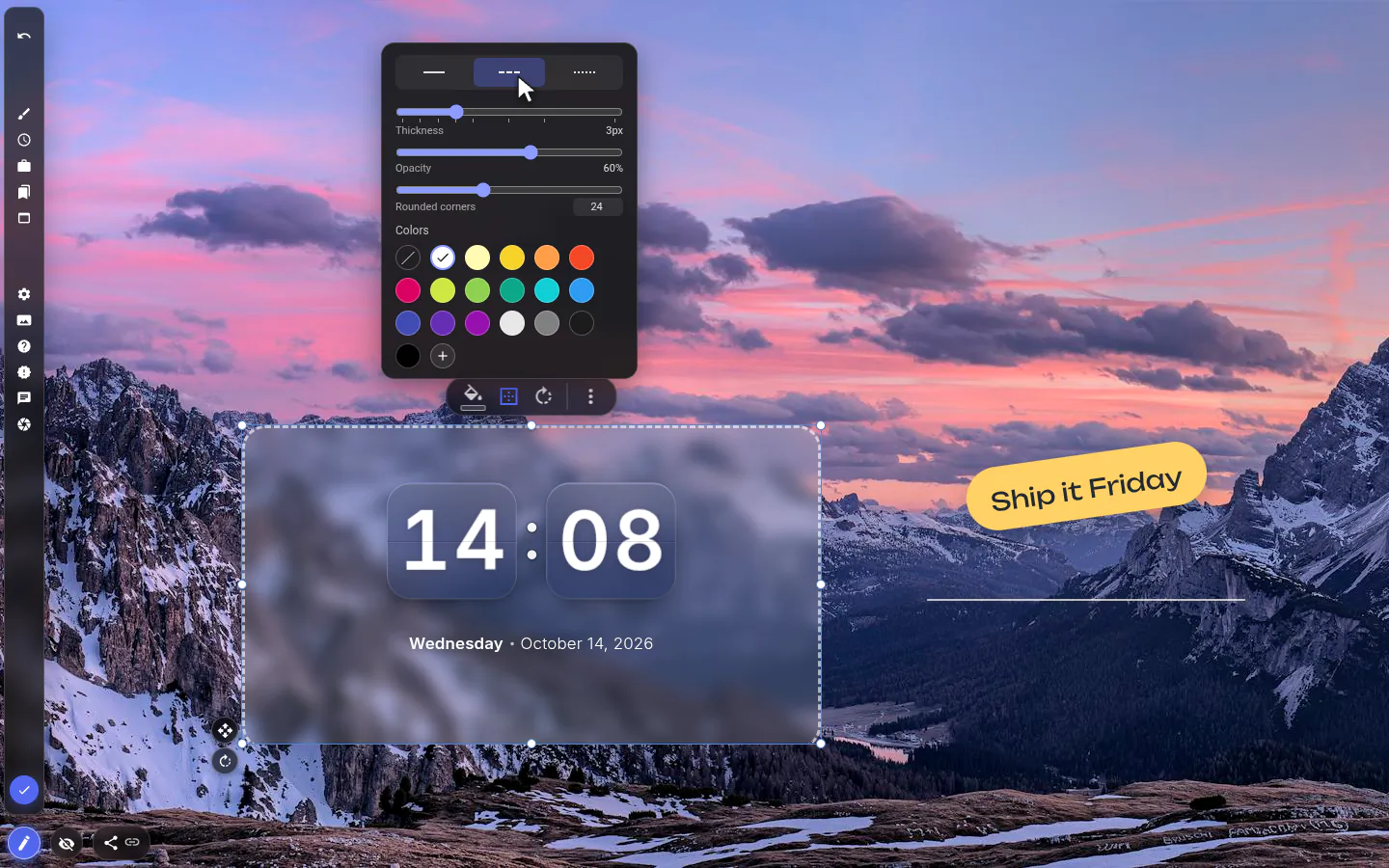
There is exactly one figure, a rectangle, and the menu calls it "Square / Line" because those are the two things people make with it. Squash it and you have a line. In 4.0 a side can go down to 2 px, where it used to stop at 16, so a hairline divider finally looks like one.
Circles need a little arithmetic — the corner slider goes to 64 px, and the number field next to it takes up to 200. A square up to 128 px becomes a circle with the slider; up to 400 px if you type 200. Anything larger stays a rounded square.
Transparency, borders, rotation
A solid block on a photo hides the photo. The same block at fifteen percent darkens it just enough for white text to read, and you keep the picture. The fill palette has an alpha channel for exactly that.
The Border panel adds a solid, dashed or dotted outline from 0 to 12 px, with its own opacity and 18 preset colours. Then there’s rotation (±180°, snapping to 15° steps), which turns a short rounded bar into a tilted pill for a label to sit on.
Figures & Lines settings
- Shape
- One rectangle. Flatten it for a line, round it off for a pill or a circle.
- Fill
- Any colour at any opacity, the key to panels that work over photos.
- Border
- Solid, dashed or dotted, 0 to 12 px, 18 colours or No border.
- Rounded corners
- Slider to 64 px, or type up to 200 px.
- Rotate
- By button or handle, snapping to 15° unless you hold Alt.
- Send to back
- In the ⋮ menu, so the panel sits under the widgets it groups.
What people use it for
- Translucent panels grouping related widgets on a dashboard.
- A 2 px rule under a heading or between two columns.
- A darkening band behind text on a bright photo.
- A tilted pill behind a label or a link.
Put the figures & lines on your new tab
It comes with New Tab Studio. The extension is free to install and needs no account to start.
- 1Add New Tab Studio to Chrome
- 2Open a new tab, click the button at the bottom left
- 3Pick the widget, then drag it into place
Questions about the figures & lines widget
What’s the best way to organize widgets on my new tab?
Group widgets on the new tab by putting a translucent rectangle behind each group, so the page reads as a few blocks instead of a scatter. The Square / Line widget in New Tab Studio does exactly that — its fill takes any opacity, and at around 15 percent it frames a group without hiding the wallpaper. Send it to back from the ⋮ menu.
How do I add a thin divider line to my new tab?
Add the Square / Line widget from the Common group and shrink its height, since a side can go down to 2 px. The widget even tells you so ("To make a horizontal line just decrease the height"). For a vertical rule, shrink the width instead, or turn the line with the rotate handle.
Can I make circles with the shapes widget?
Yes, a circle is a square with its corners rounded all the way. The corner slider stops at 64 px, which turns squares up to 128 px into circles, and typing 200 into the number field stretches that to 400 px. Anything bigger stays a rounded square.
Do shapes and lines count toward the free widget limit?
Yes, every shape you place yourself is a widget, so it counts toward the three the free plan allows, and a layout heavy on panels and dividers fills that fast. Shapes that came with an installed theme are exempt. Fill, border, rotation and the 2 px minimum cost nothing either way.
Widgets that pair well with it
See the full widget catalogue or browse themes other people have built.