
A calculator extension for Chrome, on your new tab
A calculator Chrome extension without a popup to hunt for. It sits on the new tab page, so the sum you need is one tab away rather than one search away. Six designs, keyboard input while you hover, and maths that behaves like the calculator on your desk.
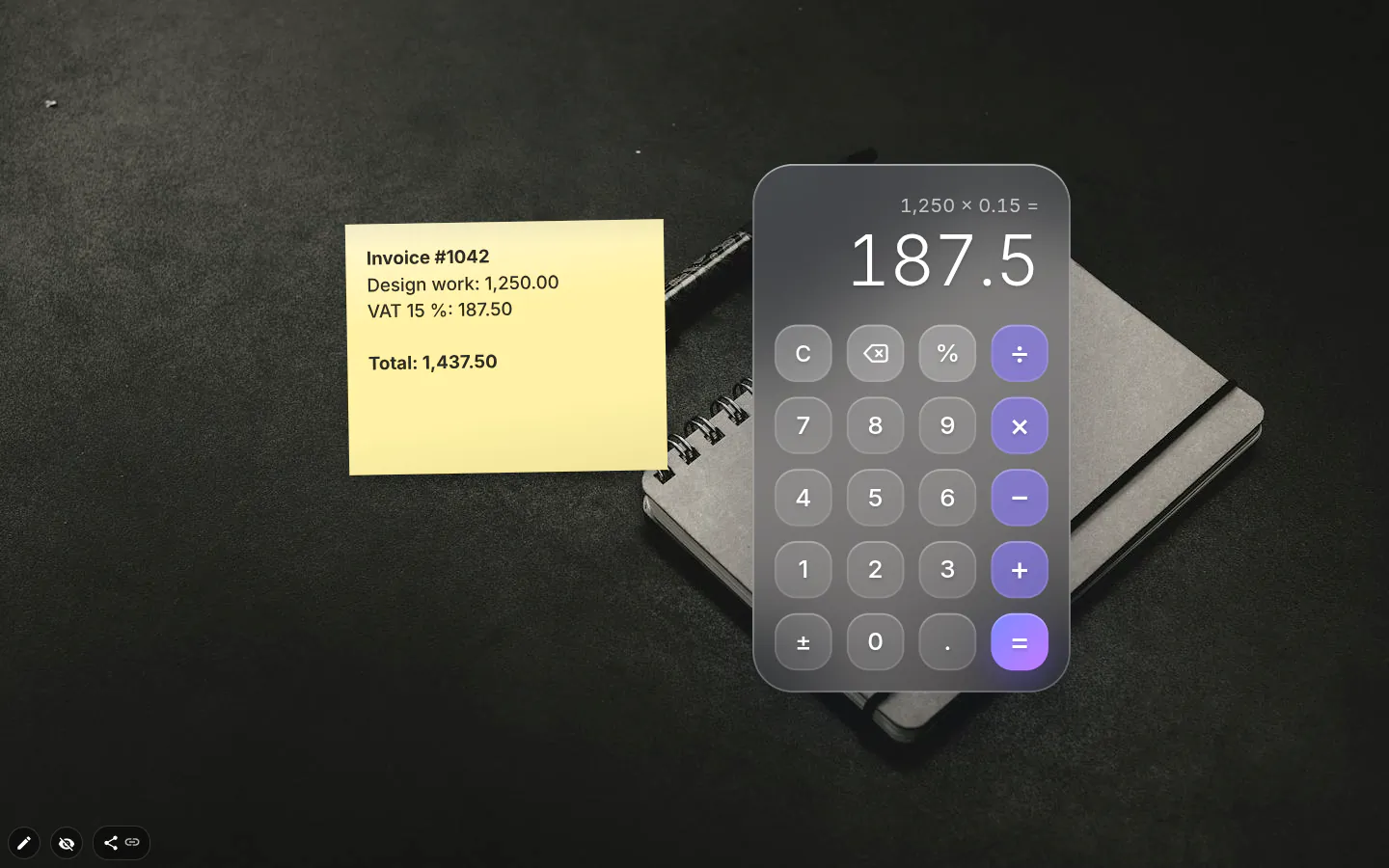
Maths like a desk calculator
It works left to right, the way a pocket calculator does, so 2 + 3 × 4 gives 20, not 14. Want the school-maths answer? Do the multiplication first.
Press = again and it repeats the last step. Handy when you’re adding the same amount a few times over. It keeps 15 digits of precision, so 0.1 + 0.2 comes out as 0.3 instead of the long tail of decimals a browser console gives you.
Percent works the way shop assistants expect: 50 + 10 % is 55, 50 × 10 % is 5. C clears the number and a second press clears everything, ⌫ removes one digit, ± flips the sign.
Type while you hover
Put the pointer over the calculator and type. No clicking required. Digits, + - * / (x works for times too), Enter or = for the result, a comma or a dot for decimals, % and Backspace. Esc clears, F9 flips the sign.
Move the pointer away and the keyboard goes back to the rest of the page, so the calculator never eats what you’re typing in a note. With two calculators on screen, only the one under the pointer listens, and anything typed with Ctrl, Cmd or Alt held is left alone.
Six designs and an accent
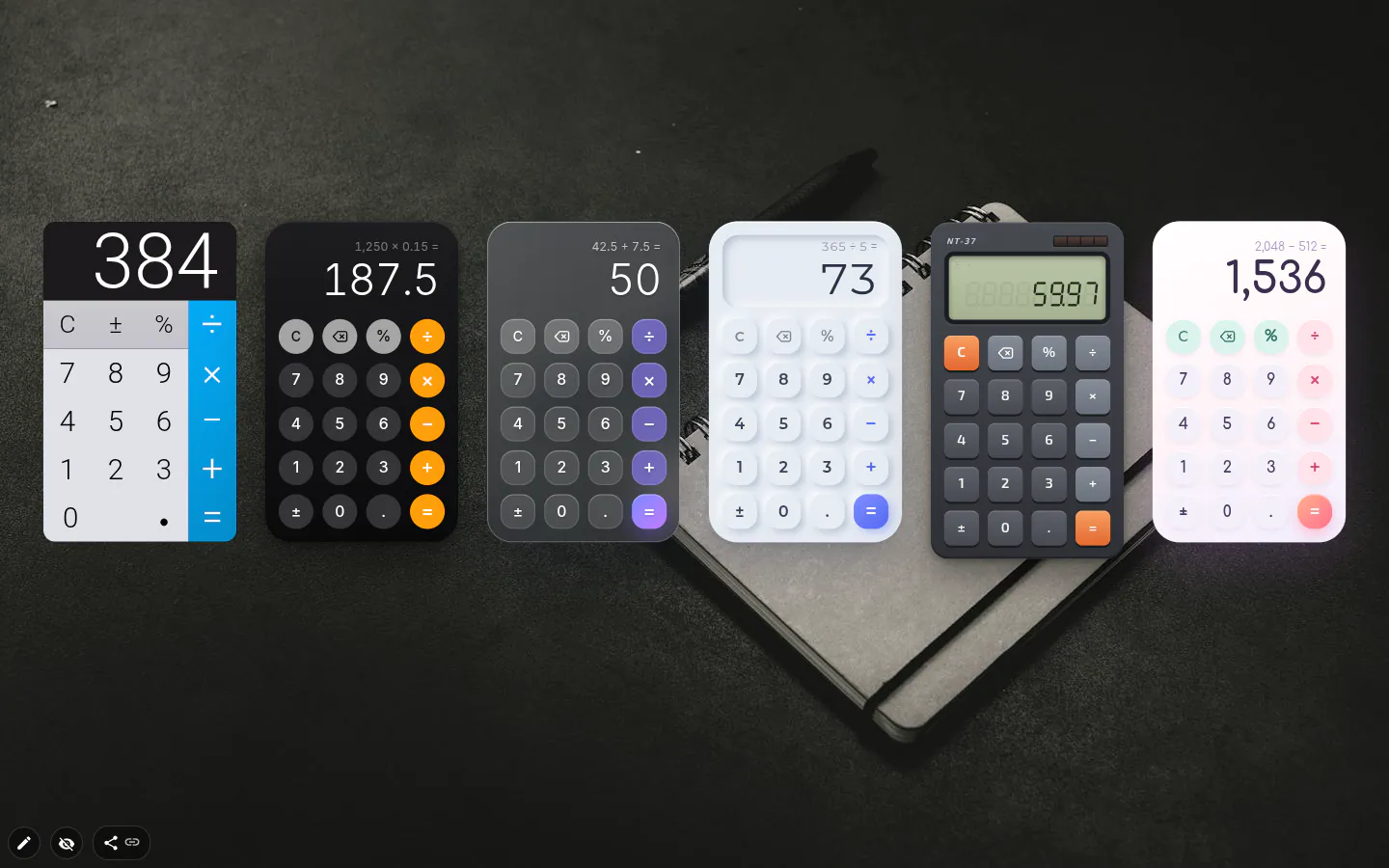
Classic, Midnight, Glass, Soft, Retro LCD and Pastel, each with its own typeface. Retro LCD draws seven-segment digits like a 1980s desk model. A new calculator arrives in Glass at a slightly reduced size; older ones keep Classic.
In the newer designs the fill colour from the toolbox tints the operator keys, the quickest way to match a wallpaper. There’s no text colour option, and bold or italic only exist in Classic.
Above the result sits the last expression, 12 + 3 = and so on (Retro LCD leaves it out). That’s the whole memory. Reload the tab and the display is back at 0.
Your numbers stay put
The figures never leave the page. The extension’s analytics does note that a calculation happened, at most once every ten seconds, but not what you calculated. Typing the same sum into the address bar hands it to your search engine instead.
It works offline, since every sum is done locally. It is not scientific either — no brackets, no powers, no memory keys. When you need those, an iframe widget can hold a full calculator site on the same tab.
Calculator settings
- Design
- Classic, Midnight, Glass, Soft, Retro LCD or Pastel. New calculators start in Glass.
- Keyboard
- Active while the pointer is over the calculator. Esc clears, F9 flips the sign, comma or dot for decimals.
- Keys
- C/AC, ⌫, %, ÷, ×, −, +, ±, the digits, a decimal point and =. The newer designs lay them out as a 4 × 5 grid.
- Fill colour
- Tints the operator keys in the newer designs. There’s no separate text colour.
- Size and position
- Drag and resize like any widget. It looks right small, in a corner.
What people use it for
- Splitting a bill or working out a tip.
- Adding tax or a discount with the percent key.
- Invoice totals, with a note beside it to keep the result.
- Repeating the same step with a second press of =.
Put the calculator on your new tab
It comes with New Tab Studio. The extension is free to install and needs no account to start.
- 1Add New Tab Studio to Chrome
- 2Open a new tab, click the button at the bottom left
- 3Pick the widget, then drag it into place
Questions about the calculator widget
Does Chrome have a built-in calculator?
Chrome has no calculator app of its own, but with Google as your search engine you can type a sum like 1250*0.15 into the address bar and the answer shows up in the suggestions. Windows and macOS each come with a Calculator app too. The calculator widget in New Tab Studio is for when you want one sitting on the new tab, ready for the keyboard.
Is the calculator widget free, and where do I find it?
The calculator widget is free with all six designs, and it hides under Common rather than Productivity. Hit the button in the bottom-left corner, then Common, then Calculator. The free plan caps you at three working widgets of any kind, and a calculator is one of them.
Is the calculator scientific?
No, the calculator widget is a desk calculator with the four operations, percent and a sign key, plus 15 digits of precision so 0.1 + 0.2 comes out as 0.3. There are no brackets, powers or memory keys. For trigonometry and friends, an iframe widget can hold a full calculator site on the same tab.
Can I type instead of clicking?
Yes, the calculator takes keyboard input while the pointer is over it. Digits, + - * /, Enter or = for the result, % and Backspace all work, Esc clears and F9 flips the sign. Move the pointer away and your keystrokes go back to the rest of the page, so typing in a note never lands in a sum.
Does the calculator keep a history?
No, the calculator only shows the last expression above the result, 12 + 3 = and so on. Nothing else is saved, so reloading the tab puts the display back at 0. For a number worth keeping, put a note beside the calculator and copy it there before you close anything.
Widgets that pair well with it
See the full widget catalogue or browse themes other people have built.