A class timetable on your new tab, with what’s next
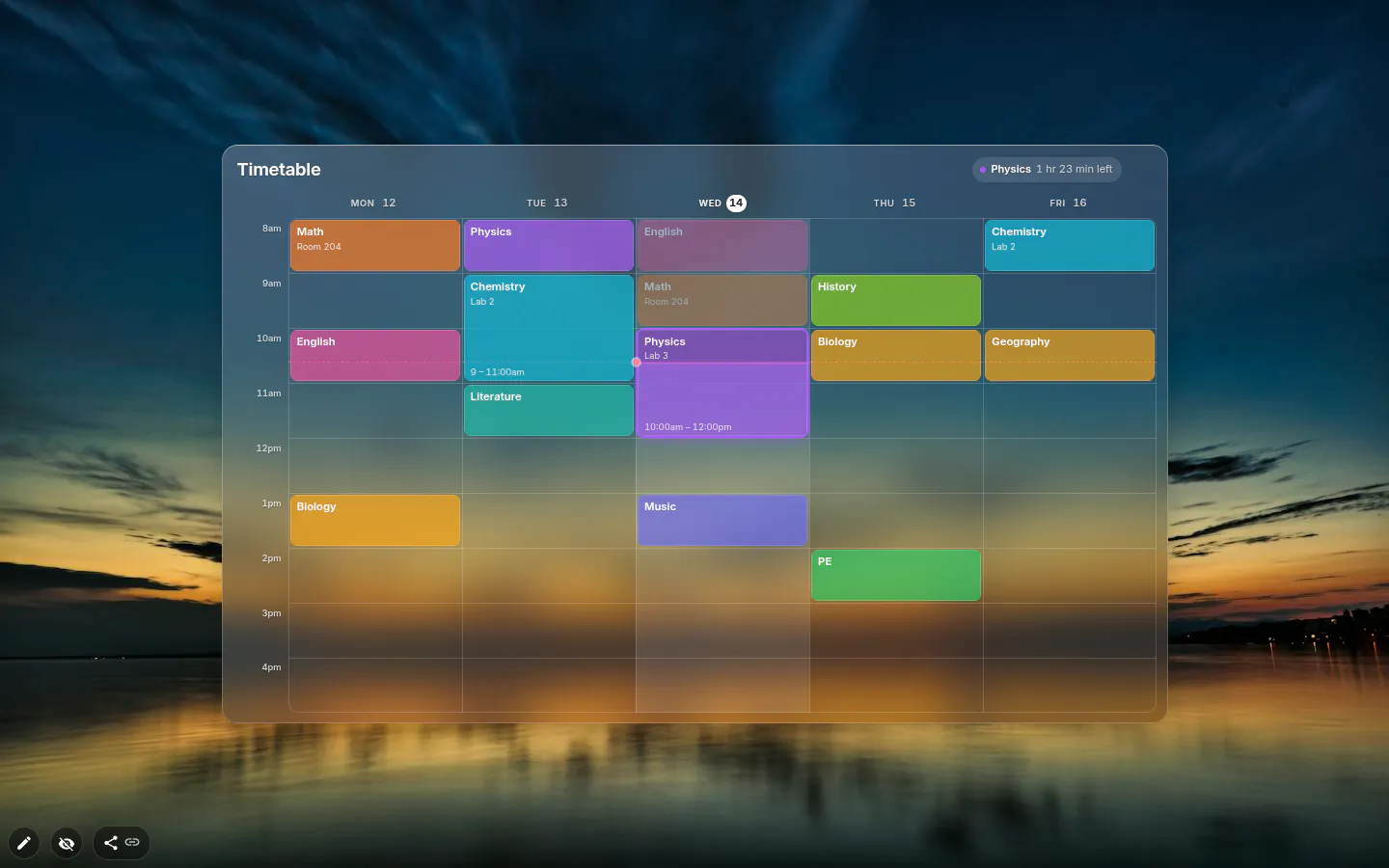
A timetable widget for a week that repeats: lectures, classes, shifts. It doesn’t stop at the grid either. Put it on the new tab and it tells you what’s on right now, how long it has left and what comes after.
Week, Today or Next up
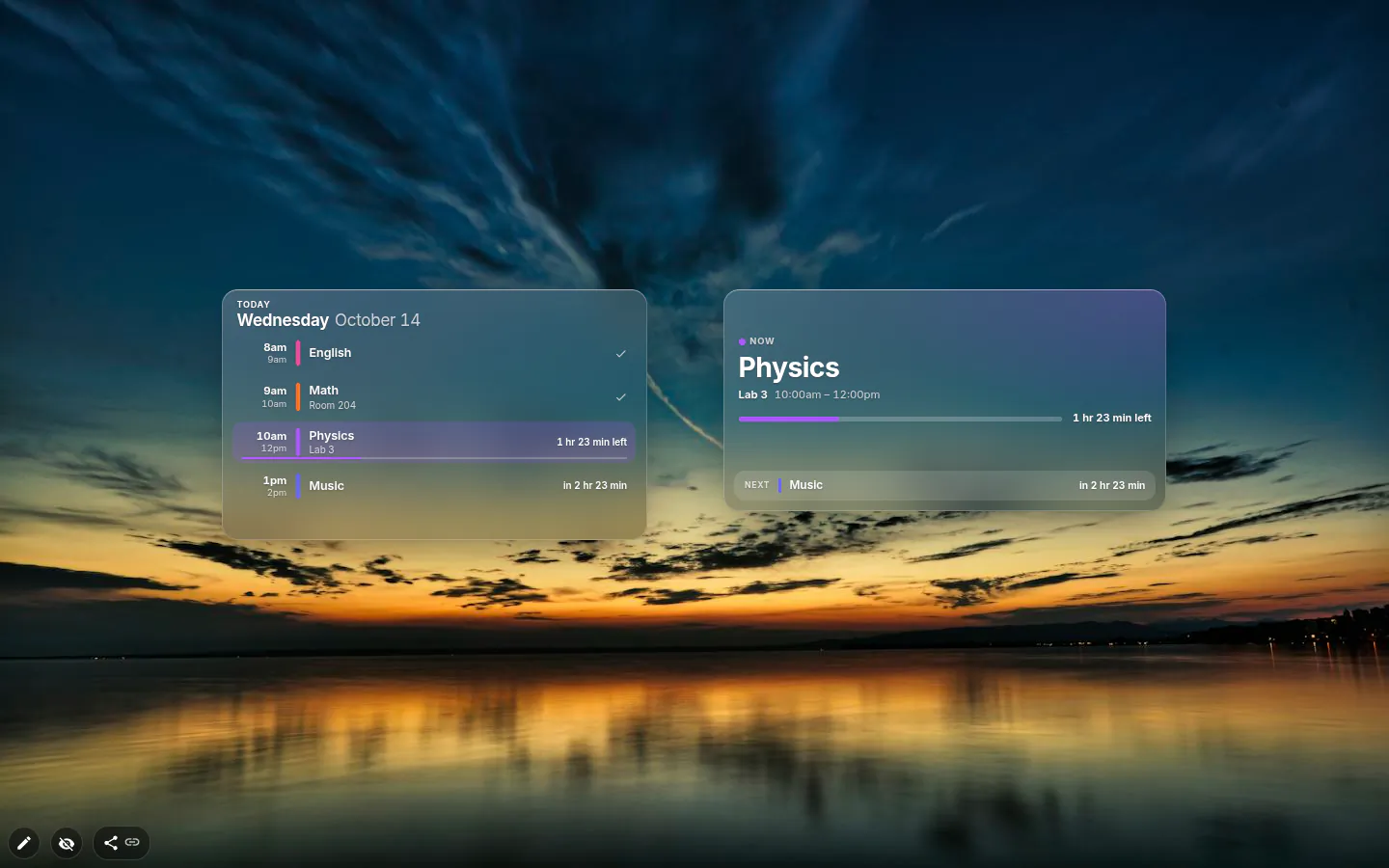
Week is the grid, days across and hours down. Today turns the same lessons into a list for the day. The current one gets a progress bar and "1 hr 23 min left", later ones say how soon they start, and gaps show up as Break.
Next up is the small one — and between classes, the most useful. It shows what’s on now with the room, a bar and the time left, then Next with a countdown. When the day is done it jumps to the first lesson of the next day that has one, "Tomorrow · 08:00" and so on.
Each view has its own frame size. Next up fits under a clock; Week needs a proper chunk of the page.
Subject, room, colour
Click a cell in Week and type. The Subject goes on the first line, Room or note underneath, a lab number or a teacher’s name. Enter jumps down a row, Tab moves to the next day, Esc cancels.
Every subject gets a colour from its name automatically, or you pick one. Subjects and colors in the settings lists them with a lesson count, and renaming a subject there renames every cell at once. Physics at 10 and Physics at 11 merge into one block from 10:00 to 12:00. One lesson, drawn once.
Your days, your hours
Days switch on one at a time. Monday to Friday out of the box, Monday to Saturday for a six-day school, or just Tuesday and Thursday. Week starts on Auto (it follows the interface language), Mon or Sun.
Hours run 8:00 to 18:00 by default, so the last row starts at 17:00. Rows can be 30 or 45 minutes, an hour, an hour and a half, or two. Lessons are pinned to their time rather than to a row, so switching to 45-minute rows or a later start scrambles nothing. Whatever falls outside the new range is hidden, not deleted, and the settings say how many lessons that is.
Now, highlighted
With Highlight today and the current time on, the week grid marks today’s column, draws a line at the current time and highlights the lesson you’re in. It refreshes on the minute and again the moment you come back to the tab.
It will not send a notification before class. The substitute is Next up on the page, where "in 10 min" is hard to miss.
Timetable settings
- View
- Week, Today or Next up.
- Title
- Up to 70 characters. Next up doesn’t show it.
- Highlight today and the current time
- Week view only. Today’s column, a line for now and the current lesson.
- Edit timetable
- Opens the week editor, even from Today or Next up.
- Days
- Seven buttons, any combination, at least one. Monday to Friday on a new timetable.
- Week starts on
- Auto, Mon or Sun. Auto goes by the interface language.
- Start hour, End hour, Row length
- 8, 18 and one hour by default. Rows run from 30 minutes to two hours, up to 48 of them.
- Subjects and colors
- Every subject with its lesson count. Recolour or rename it everywhere at once.
- Design
- Classic, Light, Dark or Glass. New timetables start in Glass (Light or Dark on a plain background).
What people use it for
- A university timetable next to an exam countdown.
- Next up under the clock, so the next lesson is one glance away.
- A six-day shift pattern.
- A teaching week, rooms included.
Put the timetable on your new tab
It comes with New Tab Studio. The extension is free to install and needs no account to start.
- 1Add New Tab Studio to Chrome
- 2Open a new tab, click the button at the bottom left
- 3Pick the widget, then drag it into place
Questions about the timetable widget
How can I keep my class schedule on my computer screen?
The usual ways to keep a class schedule on screen are a wallpaper with the timetable on it, a calendar full of repeating events, or a timetable widget on the new tab. A wallpaper can’t tell you what’s next, and twenty weekly events clutter a calendar. New Tab Studio’s Timetable widget adds a Next up view with the current lesson, its time left and a countdown to the next.
Do I need PRO for the timetable?
No, the Timetable widget has nothing locked behind PRO, from the three views to subject colours and the week editor. It arrived in version 4.0 and just occupies a free slot. There are three of those, and widgets that came with an installed theme fill them too.
How is the timetable different from the Calendar widget?
The Calendar widget holds dated events that happen once, while Timetable holds a week that repeats and has no dates at all. Twenty weekly lectures in a calendar is clutter; in a timetable it’s one tidy grid. Plenty of students run both, the timetable for the routine and the calendar for exams and deadlines.
Can I show weekdays only, or six days?
Yes, timetable days switch on one at a time, so Monday to Friday, Monday to Saturday or just Tuesday and Thursday all work. A new timetable starts on Monday to Friday. Week starts on follows your interface language until you set Mon or Sun yourself.
Does the timetable remind me before a class?
No, the timetable sends no notifications. Keep the Next up view on the page instead, where “in 10 min” counts down to the next lesson and the current one shows how long it has left. Once the day is over, it jumps ahead to the first lesson of the next day that has one.
Widgets that pair well with it
See the full widget catalogue or browse themes other people have built.